

The top 5 best seo plugins for wordpress worth knowing about are Site Kit by Google, Modern Image Formats, LiteSpeed Cache, Yoast SEO and Add Custom Codes. Between them they cover reporting, image handling, site speed, on page optimisation and the small pieces of code that SEO work keeps asking for. Each does one job well, and none of them forces you to edit theme files unless you want to.
I am Dony Garvasis, a freelance SEO consultant, and I want to help anyone who runs a WordPress site get found. I looked at dozens of plugins and tested the strongest contenders in depth before settling on these five. A couple will be familiar names. Others rarely turn up in plugin roundups, even though they solve problems that quietly hold sites back.
One question before we start. When did you last check how people actually find your site? If the honest answer is “not recently”, the first plugin below is the place to begin.
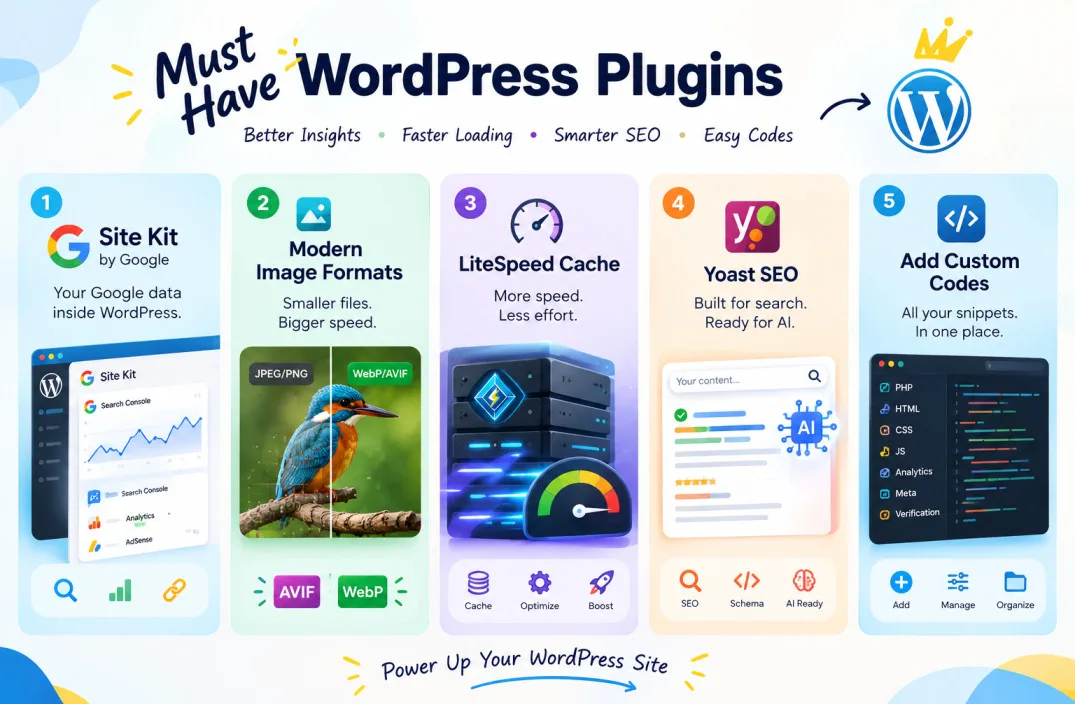
Site Kit is the official WordPress plugin from Google, built to show how people find and use your site. It brings insights from several Google products onto your WordPress dashboard, so you stop hopping between tabs and logins just to see what is going on. It is free.
This matters because ranking better starts with knowing what is already working. Once you connect your account, the main Site Kit dashboard shows key metrics from Google Search Console, and you can read them for the whole site or for a single post. That per post view is where it gets useful. You can see which individual articles are pulling their weight.
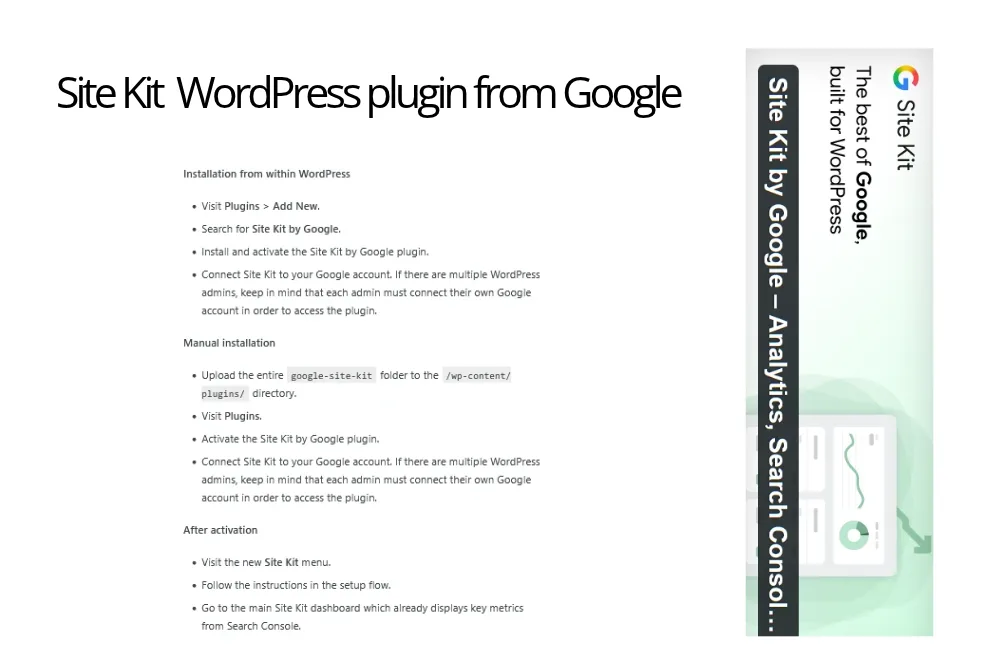
Go to Plugins, then Add New, search for Site Kit by Google, then install and activate it. After that, connect it to your Google account. You can also upload the plugin folder to your plugins directory by hand and activate it from the Plugins page.
Once activated, open the new Site Kit menu and follow the setup flow. When it finishes, the dashboard already displays Search Console metrics. Additional Google tools can be connected later under Site Kit, then Settings.
Your website has to be live. If it is not, Site Kit has no data to show you. If you also keep a staging environment, Site Kit can display data from your production site there.
Also, if several people administer your WordPress site, each admin needs to connect their own Google account to use the plugin. Plan for that if you work with a team or an agency. You can read more on the Site Kit plugin page, and Search Console itself lives at Google Search Console.
This plugin adds WebP and AVIF support to WordPress media uploads. By default it generates AVIF images when your hosting server supports them, and falls back to WebP when it does not. If your server can do both, you pick the output format under Settings, then Media. You may remember it under its old name, WebP Uploads.
It is a small plugin with a narrow job, and that is exactly why I like it. Most site owners never think about which format their images are stored in. Here, you decide once and the plugin handles it from then on.
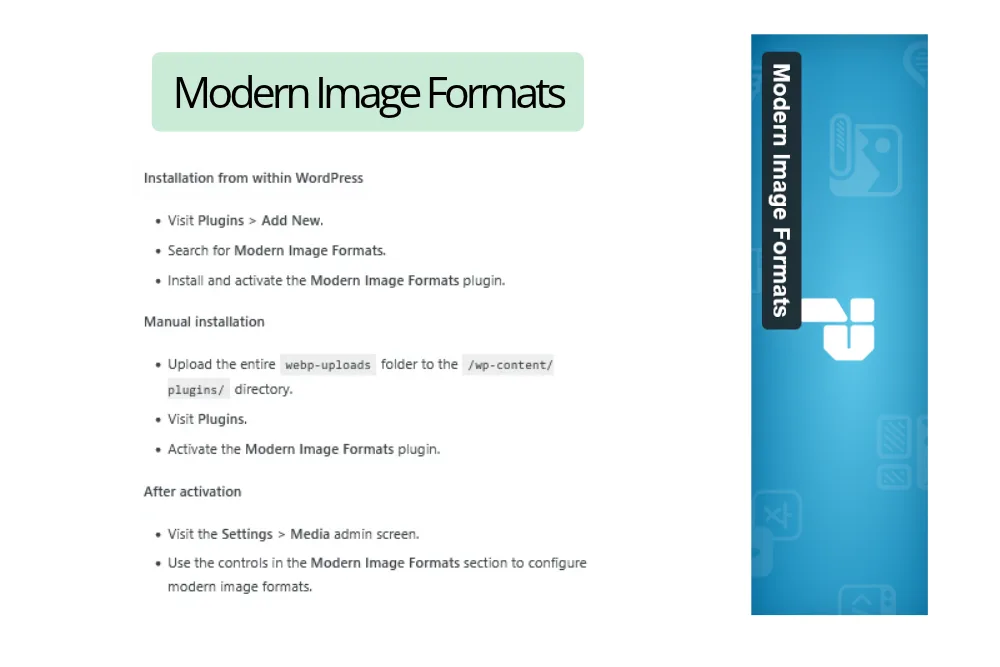
Install it from Plugins, then Add New, by searching for Modern Image Formats. After activation, open Settings, then Media, and use the controls in the Modern Image Formats section.
There is one behaviour that surprises people. For JPEG and PNG uploads, the plugin generates only modern format sub sizes by default. The original file you uploaded remains a JPEG or PNG, but every resized version WordPress creates from it will be WebP or AVIF.
Modern formats are created only for new uploads. Images already in your media library stay as they are until they are regenerated. You can regenerate them with a plugin such as Regenerate Thumbnails, or through WP CLI using the wp media regeneratecommand. If your library is large, it is worth planning this step rather than assuming it happened on its own.
Prefer to keep the original format alongside the new one? Tick the “Output fallback images” checkbox under Settings, then Media. The plugin will then generate both the original format and WebP or AVIF for every sub size. Again, this only applies to images uploaded after you change the setting.
LiteSpeed Cache for WordPress is an all in one acceleration plugin. It combines an exclusive server level cache with a collection of optimisation features. It supports WordPress Multisite, works with ClassicPress, and is compatible with most popular plugins, including WooCommerce, bbPress and Yoast SEO, so it should sit comfortably next to the other plugins in this list.
Here is the part people miss. The name suggests you need a LiteSpeed web server, but the general features can be used by anyone, on any web server, including Apache and NGINX. The server level caching is where a LiteSpeed server comes in.
Check out LiteSpeed Cache plugin
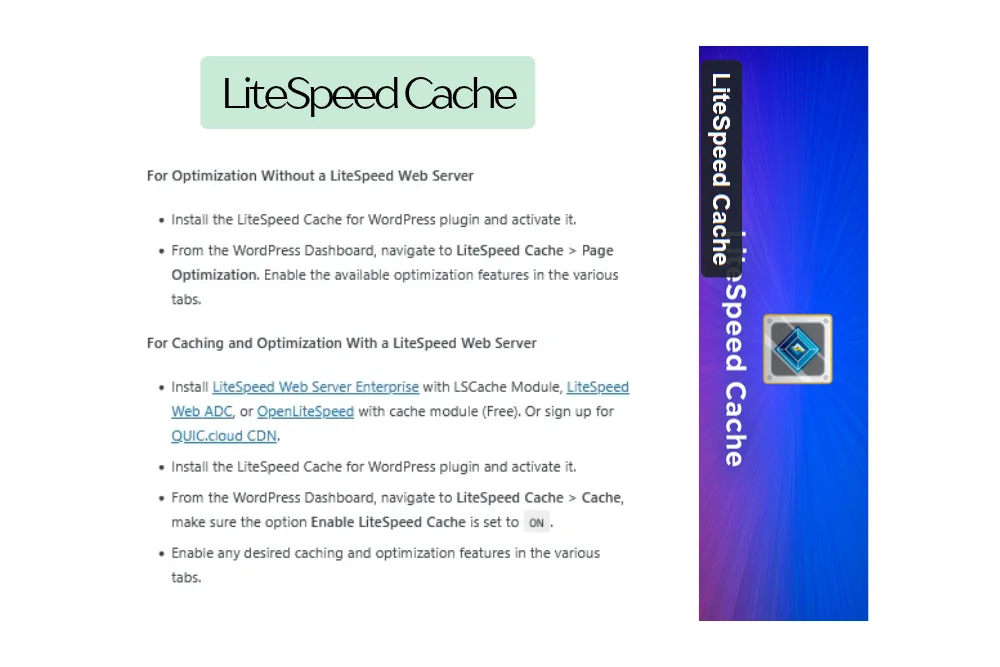
Install and activate the plugin. From your WordPress dashboard, go to LiteSpeed Cache, then Page Optimization, and enable the optimisation features you want across the various tabs. That is the whole route for optimisation without a LiteSpeed web server.
You have a few ways to get the caching side working. You can install LiteSpeed Web Server Enterprise with the LSCache module, or LiteSpeed Web ADC, or OpenLiteSpeed with its cache module, which is free. Another option is to sign up for QUIC.cloud CDN.
Then install and activate the plugin, go to LiteSpeed Cache, then Cache, and check that Enable LiteSpeed Cache is set to ON. After that, switch on whichever caching and optimisation features you need in the different tabs.
Yoast SEO has been around since 2008, and it says more than 10 million websites now run it, from small local businesses to some of the most visited sites on the web. Its stated mission is SEO for everyone: you should not need a specialist, a big budget or a technical background to give your content a fair chance of being discovered.
Most people stop at the name. The more interesting part is how Yoast SEO now approaches discovery in AI driven search alongside traditional results.
Yoast uses Schema.org structured data to help AI systems understand what your content is about. It also offers schema aggregation, which gives AI agents a complete picture of your site in a single request. LLMs.txt management lets you guide how large language models interact with your content, and the bot blocker in Premium lets you control which AI crawlers may use your content for training.
There is an honest caveat here, and Yoast states it plainly. Nobody can guarantee that an AI assistant will mention your site. What you can do is make sure it understands your content correctly. Does your site currently explain itself clearly to machines, or are they left to guess?
An XML sitemap helps Google retrieve the essential pages of a website very quickly, even when the internal linking is not perfect. Yoast keeps the sitemap index and the individual sitemaps updated automatically as you add or remove content. They include the post types you want search engines to index, and any post type marked as noindex stays out of the sitemap.
Add Custom Codes lets you put PHP functions, HTML, custom CSS, JavaScript, Google Analytics, Facebook scripts, meta verification codes and Search Console verification tags on your site from one screen. Add custom codes is a 100% free WordPress plugin, with no paid upgrades.
SEO work produces a steady trickle of small code requests: a verification tag here, a tracking script there. Without a dedicated place for them, these tend to end up scattered through theme files, where nobody remembers what they do. Keeping them in one plugin makes each snippet easy to find, switch off or move.
</head> or before </body>Install it through Plugins, then Add New, or upload the plugin files to your plugins directory. Activate Add Custom Codes from the Plugins page, then go to Dashboard, then Add Custom Codes to begin.
You do not need to install everything on the same afternoon. This is the order I would suggest, based on what each plugin does:
Two small notes. LiteSpeed Cache is listed as compatible with Yoast SEO, so those two should coexist well. And since both Site Kit and Add Custom Codes can deal with Google Analytics and Search Console connections, choose one route for each tool instead of adding the same tag twice.
Which of the five would you install first on your own site?
No. The general optimisation features work with any web server, including Apache and NGINX. A LiteSpeed web server, or QUIC.cloud CDN, is needed for the server level caching side.
Modern Image Formats only converts new uploads. Existing images change only when they are regenerated, which you can do with a plugin like Regenerate Thumbnails or with the WP CLI command wp media regenerate.
Site Kit cannot show data until the website is live. If you use a staging site as well, Site Kit can display your production site’s data there.
Yes. Each admin must connect their own Google account to access the plugin.
No, and nobody honestly can. What Yoast helps with is making sure AI systems understand your content correctly, through structured data, schema aggregation and LLMs.txt management.
No. Post types marked as noindex are left out of the sitemap, and the sitemap updates itself as you add or remove content.
The plugin includes an auto deactivate feature for PHP snippets that cause errors, and you can also switch any snippet on or off with a single click.
Also read: