
If your pages are not appearing in Google search results, Google Search Console is one of the first places you should check. The Pages section can show exactly why URLs are not being indexed, including 404 errors, noindex tags, server errors, robots.txt blocks, soft 404s, and duplicate or canonical issues. Fixing the reported problem and validating the changes can help improve your website’s presence in Google search results.
Before we get into how to fix indexing errors, let us first understand what Google Search Console is and why it matters for SEO. As a freelance SEO consultant, I use it to understand how Google interacts with a website, identify indexing issues, and find opportunities to improve a website’s visibility in Google search results.
Google Search Console is an important tool for monitoring how your website is crawled, indexed, and displayed in search. When it comes to indexing, it can help you identify pages that Google has discovered but has not added to its search index.
For SEO and , this information can be extremely useful because a page generally needs to be indexed to have the opportunity to appear in Google search results. If important pages are excluded because of a technical problem, you may have content on your website that Google cannot properly use in search.
The Index Coverage report, now available through the Pages section, allows you to review indexing problems and warnings. These reports can show several different reasons why a page has not been indexed. Some issues may be intentional, while others may require immediate attention.
The important thing is not to panic when you see excluded pages. The goal is to understand why a page is excluded and determine whether that exclusion is appropriate for the page.
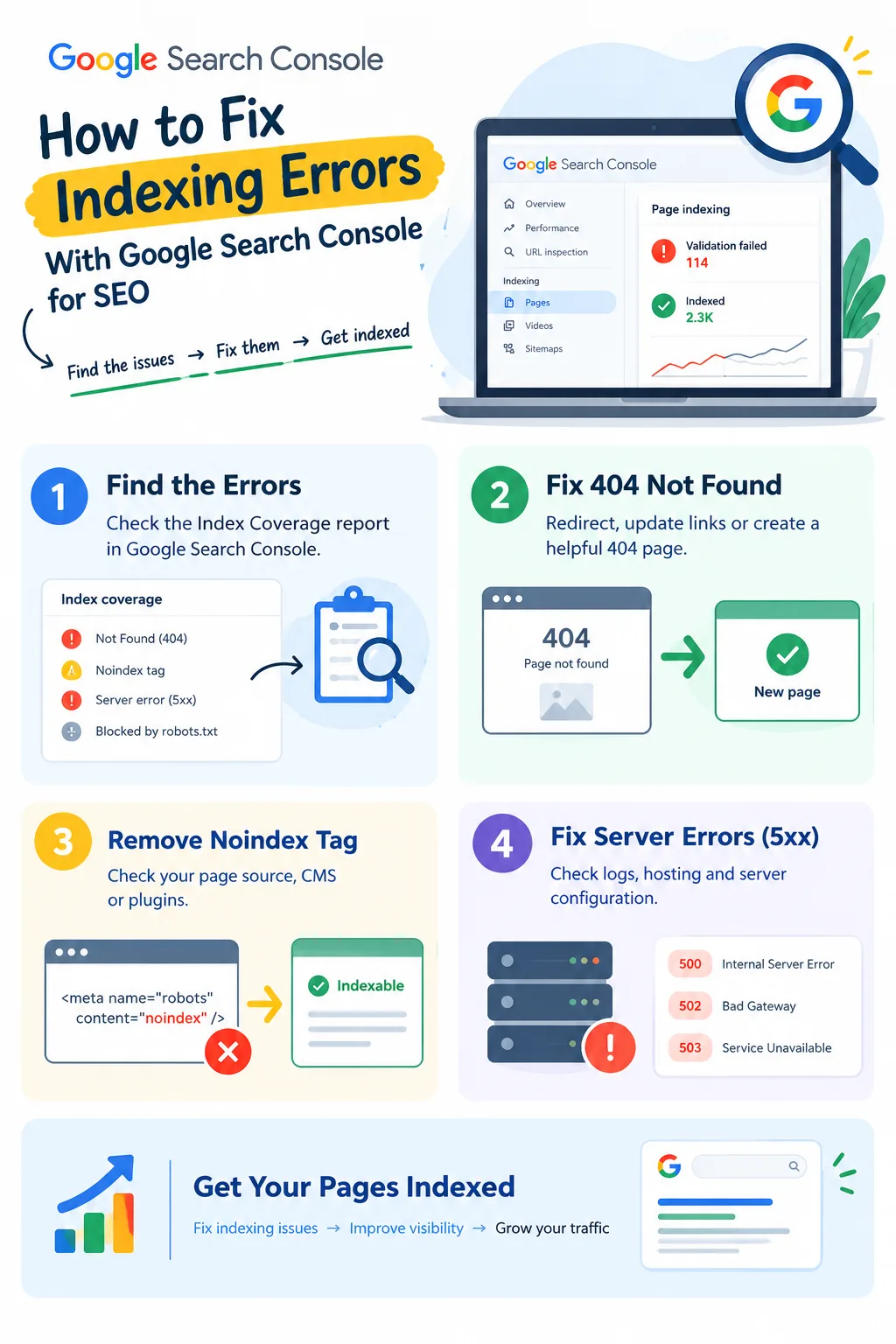
The first step in fixing indexing errors is finding the actual problems reported by Google Search Console.
Log into your Google Search Console account and open the Index Coverage report or the Pages section. You can then review the errors and warnings associated with URLs on your website.
You may see problems such as Not Found 404, Excluded by noindex tag, Server errors 5xx, Blocked by robots.txt, Soft 404, or duplicate and canonical related issues.
Each error means something different, so there is no single solution that fixes every indexing problem. For example, a missing page may need a redirect, while a page accidentally blocked by a noindex tag may simply require that tag to be removed.
This is why identifying the exact error should always come before making changes to your website.
A 404 error generally means that a page is missing or has been deleted. If the URL previously existed and is no longer available, Google may report it as Not Found.
A 404 page is not always a problem. If a page was permanently removed and there is no relevant replacement, allowing it to return a proper 404 status can be appropriate. However, problems can occur when important pages have been deleted accidentally or when other pages continue linking to an outdated URL.
If an old URL has a relevant replacement page, you can redirect the old URL to that new page using a 301 redirect. This can help users reach the correct content instead of landing on a missing page.
You should also check for broken internal links pointing to the missing URL. If your own website links to a page that no longer exists, fixing or removing those links can improve the overall user experience and site structure.
External links pointing to an old URL may also need consideration. Where appropriate, the old URL can be redirected to a relevant new page.
If a page has genuinely been removed and there is no suitable replacement, creating a helpful custom 404 page can make the experience better for visitors who reach the missing URL.
Another common indexing problem occurs when Google detects a noindex tag on a page.
A page containing a noindex meta tag is specifically telling search engines not to index that page. This can be intentional, but it can also happen accidentally.
If the page is supposed to appear in Google search results, you need to remove the noindex tag from the page source or through your CMS or plugins.
This is especially important for websites using plugins or themes that can automatically add noindex tags. Sometimes a website owner may not realise that a plugin or theme has changed the indexing instructions for a page.
If Google Search Console reports that a page is excluded because of a noindex tag, check the page carefully before changing anything. If you want the page indexed, identify where the noindex instruction is coming from and remove it.
This simple check can sometimes explain why an important page is missing from Google search results.
Server errors can prevent Googlebot from accessing your pages. These errors are generally associated with problems on the website server and can include errors such as 500, 502, and 503.
If Google cannot successfully access a page because the server is returning an error, the page may not be properly crawled or indexed.
The first step is to investigate what is causing the server error. Checking server logs can help identify internal errors and other problems affecting access to your website.
You should also check whether your CMS or hosting environment is causing downtime or slow responses. If the website frequently becomes unavailable, Googlebot may have difficulty accessing important pages.
Server resources and configuration should also be reviewed. Your server needs sufficient resources to handle requests and should be properly configured so that Google can access your content.
Fixing the underlying hosting or CMS problem is more important than simply checking the URL repeatedly in Search Console. Once the server issue is resolved, you can return to Search Console and monitor whether the reported problem disappears.
The robots.txt file controls which areas of a website search engine crawlers are allowed to access. If important pages are blocked by robots.txt, Googlebot may not be able to crawl them properly.
If Search Console reports that an important page is blocked by robots.txt, review the robots.txt file and identify the rule causing the problem.
The robots.txt Tester in Search Console can help you identify URLs that are blocked. If an important piece of content is being prevented from crawling, you may need to remove or modify the relevant disallow rule.
This is particularly important when the blocked page is one that you want Google to crawl and potentially index.
Before changing robots.txt rules, make sure you understand which pages are being affected. The objective is not simply to remove all restrictions. Instead, the goal is to ensure that important content remains accessible to Googlebot.
A soft 404 can be confusing because the page may technically return a 200 OK status even though it effectively tells visitors that the requested page cannot be found.
For example, a page might display a not found message while still returning a successful 200 status. Google may recognise that the page does not contain useful content and treat it as a soft 404.
If the page genuinely does not exist, it should return the correct 404 HTTP status code.
On the other hand, if the page is intended to be indexed, it should contain meaningful content rather than appearing like a missing page.
This distinction is important because the solution depends on what you actually want the URL to represent. A genuinely missing page should behave like a missing page, while a page intended for search should provide useful and meaningful content.
Duplicate content and canonical problems can also affect indexing.
Google may decide not to index a page if it considers that page to be a duplicate of another URL. This is where canonical tags become important.
A canonical tag should identify the preferred version of a page when multiple versions of similar content exist. Using canonical tags correctly can help Google understand which version should be considered the main page.
You should also avoid unnecessary duplicate content and improper redirects. When several URLs lead to similar or identical content, Google may decide which version it considers most appropriate for indexing.
If Search Console reports a duplicate or canonical related issue, review the affected URLs and check whether the preferred page is correctly identified.
The goal is to make your website structure clear so Google can understand which version of the content you want to appear in search.
Fixing an indexing problem is only part of the process. After making a correction, you should also validate the change.
Google Search Console provides the URL Inspection tool, which can be used to inspect a specific URL and request re indexing after you have corrected an issue.
For example, if you removed an accidental noindex tag, corrected a server problem, or fixed another indexing issue, you can inspect the URL again and request re indexing.
You should also continue monitoring the Pages section and Index Coverage information to see whether the error is resolved over time.
It is important to remember that indexing changes do not necessarily appear immediately. Google may need time to crawl the page again and process the changes.
So, if you have made the correct fix and the old error is still visible, give Google some time before assuming that the solution has failed.
Your sitemap is another important part of an effective indexing setup.
You should make sure that your sitemap is accurate and submitted in Google Search Console. A properly maintained sitemap can help Google discover the URLs that you want it to know about.
An inaccurate sitemap can create confusion because it may contain URLs that are no longer relevant or pages that you do not want to focus on.
Keeping your sitemap accurate is therefore an important part of maintaining a healthy website from an SEO perspective.
When you are investigating indexing problems, your sitemap should be one of the areas you review along with the Pages section, internal links, robots.txt, and individual URL settings.
Indexing is not only about fixing individual errors. Your overall website structure can also influence how easily Google discovers and crawls your pages.
Improving site structure and internal linking can help Google discover important content more effectively.
Internal links also help connect related pages within your website. If an important page has few or no internal links pointing toward it, reviewing your site structure may be useful.
When fixing indexing problems, therefore, do not only focus on the individual URL reported in Search Console. Look at how that URL fits into the wider structure of your website.
A clear website structure can make it easier for both users and search engines to navigate your content.
Technical problems are not the only reason pages may be excluded from Google.
Thin or low quality content can also be excluded. This means that fixing technical settings alone may not guarantee that every page on your website will appear in search results.
If you want a page to be indexed, make sure it provides meaningful content and serves a useful purpose.
When reviewing pages reported in Search Console, consider both the technical and content related aspects of the page. A page may be technically accessible while still not being considered useful enough for indexing.
Improving the quality and usefulness of your content can therefore be an important part of your overall SEO and indexing strategy.
Google Search Console has also introduced generative AI performance reports that provide information about how websites appear in AI Overviews and AI Mode.
According to the information provided, Google says these generative AI performance reports have rolled out to all websites worldwide. The rollout follows a phased introduction that began in June.
A note added to the Google Search Central blog post that introduced the reports states that as of August 31, 2026, these insights had been rolled out to all websites worldwide.
However, the information also notes that Search Console help pages still say that not all properties have access. This means there may still be differences in what individual properties can see.
For website owners and SEO professionals, these reports provide another way to understand how pages appear within Google’s newer AI search experiences.
When the report is available, website owners can view impressions from AI Overviews and AI Mode.
This can provide useful visibility into where pages appear within Google’s AI features. For SEO professionals, understanding these appearances may become increasingly important as search experiences continue to develop.
However, the true value of these impressions is still unclear based on the information provided.
The reports show where pages appear within AI features, but they do not indicate how many clicks those appearances generate.
This means that impressions alone should not necessarily be treated as a direct measure of business value. A page appearing within an AI feature can provide visibility, but the available report does not tell you exactly how that visibility translates into clicks.
For now, these reports can be viewed as another source of information about how your website appears across Google’s search experiences.
Not every exclusion shown in Google Search Console means something is wrong.
Some pages may be intentionally excluded. For example, a page with a noindex tag may be excluded deliberately, while a permanently removed page may correctly return a 404 status.
The important question is whether the page should be indexed.
If an important page that you want appearing in Google search is excluded, then the reported reason deserves attention. If a page is intentionally excluded, there may be no need to change anything.
This is why understanding the reason behind each indexing status is more useful than simply trying to make every URL appear as indexed.
After fixing an indexing issue, you may not see the change immediately.
Google needs to crawl and process the updated page before Search Console can reflect the new status. The information provided recommends being patient because indexing updates can take a few days to appear.
You can use the URL Inspection tool to request re indexing after making a correction. You can then continue monitoring the Pages section to see whether the reported issue is resolved.
If the issue remains visible immediately after you fix it, that does not automatically mean the fix was unsuccessful. Give Google time to process the change.
The most effective way to manage indexing errors is to follow a consistent process.
Start by opening Google Search Console and reviewing the Pages section or Index Coverage report. Identify the exact error affecting the URL. Then determine whether the page should actually be indexed.
When the problem is a 404, consider whether the URL needs a relevant 301 redirect or whether it should remain removed. If the issue is a noindex tag, check whether the tag was added intentionally.
Found a server error? then investigate the hosting or CMS problem. If robots.txt is blocking an important page, review the relevant disallow rule.
For soft 404 problems, make sure missing pages return the correct 404 status, while pages intended for indexing contain meaningful content.
For duplicate and canonical issues, make sure the preferred version of the content is correctly identified.
After making the appropriate correction, inspect the URL again and request re indexing. Finally, monitor Search Console over the following days to determine whether the issue has been resolved.
Google Search Console makes it easier to understand why certain pages are not being indexed, but fixing indexing errors requires you to look at the specific reason behind each problem. Whether you are dealing with a 404, noindex tag, server error, robots.txt block, soft 404, or canonical issue, the right solution depends on the situation.
A good approach is to identify the problem first, make the appropriate correction, validate the URL through Search Console, and then monitor the results. Keeping your sitemap accurate, improving internal linking, maintaining a clear site structure, and avoiding thin or low quality content can also support better crawlability and indexing.
Google’s generative AI performance reports add another layer of search visibility information by showing impressions from AI Overviews and AI Mode. While these reports can help you understand where your pages appear in Google’s AI experiences, impressions do not currently show how many clicks those appearances generate.
Ultimately, Google Search Console should be treated as an ongoing SEO monitoring tool rather than something you check only when a problem appears. Regularly reviewing indexing information can help you identify technical issues, understand excluded pages, and keep your website in better shape for Google search.
Also read: Google Trends Adds Category Filters to the New Explore Page
The first step is to open the Pages section or Index Coverage report and identify the specific indexing error affecting the URL.
A 404 error means that the requested page is missing or has been deleted. A relevant old URL can be redirected to a suitable new page using a 301 redirect.
If the page should be indexed, remove the noindex tag from the page source or through your CMS or plugins. Also check whether a plugin or theme is adding the tag automatically.
Server errors can occur when Googlebot cannot properly access your pages because of server, CMS, hosting, downtime, resource, or configuration problems.
Review your robots.txt file and use the robots.txt Tester in Search Console to identify blocked URLs. Remove or modify disallow rules that prevent Googlebot from accessing important content.
A soft 404 occurs when a page appears to be missing but returns a 200 OK status. Truly missing pages should return the correct 404 status, while pages intended for indexing should contain meaningful content.
Yes. Google may choose not to index a page when it considers the page a duplicate. Correct canonical tags can help identify the preferred version.
After fixing an indexing problem, use the URL Inspection tool in Google Search Console to inspect the URL and request re indexing.
Indexing updates can take a few days to appear. After requesting re indexing, continue monitoring the Pages section for changes.
No. Some pages may be intentionally excluded. The important thing is to determine whether the page should be indexed and then address the issue if the exclusion is unwanted.
The reports can show impressions from AI Overviews and AI Mode, helping website owners understand where their pages appear within Google’s AI search features.
The information provided says that these reports show impressions but do not indicate how many clicks those appearances generate.